



Automating recurring Excel reports is one of the most common requests we get as Power BI developers. On paper, it sounds simple: every day an email arrives with a report, you copy–paste the content into an Excel file that already contains formulas, and the report is ready. Easy, right?
In reality, it’s repetitive, boring, and unreliable. What happens if I’m not there for a few days? Who takes over? How do we avoid handovers and daily manual steps?
In this post, I’ll walk you through how I automated this task 100 percent, no clicks, no manual unzipping, no uploading, everything running on its own.
The Challenge: ZIP Files and Power BI Don’t Get Along
The daily report arrives by email, but in a ZIP file format.
Power BI cannot directly process ZIP files.
That means someone must manually:
-
Download the email attachment
-
Unzip it
-
Upload the extracted Excel to SharePoint
-
Refresh Power BI
This defeats the whole purpose of automation.
So the real challenge was:
How do we fully automate the entire chain, including unzipping the file?
Step 1: Automating the Email → SharePoint Flow
The first part of the solution was to use Power Automate.
I built a simple flow triggered by “When a new email arrives”.
The flow:
-
Detects the daily report email
-
Extracts the attachment
-
Uploads it directly to SharePoint
-
Sends me a confirmation email that the process succeeded
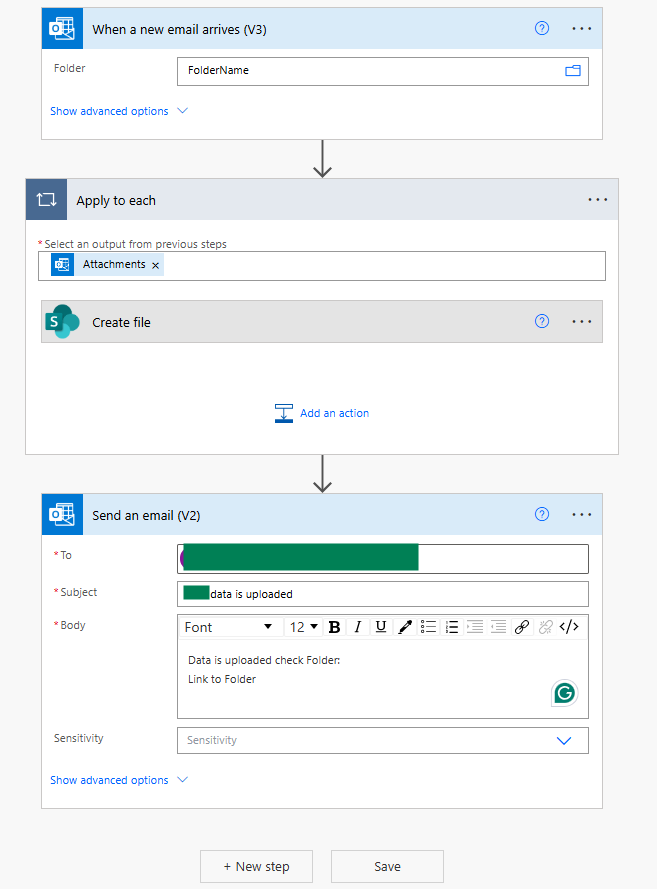
This handled the delivery and upload.
But… the file was still a ZIP.
Step 2: Automatically Unzipping the File Using a Power Query Function
While researching, I found an amazing article on the Fabric Community that provides a custom Power Query unzip function.
You simply paste the code into Power BI, and the function can unzip files during refresh.
Here is the link:
https://community.fabric.microsoft.com/t5/Power-Query/How-to-connect-Azure-DevOps-REST-API-in-to-power-bi/m-p/895318/highlight/true#M30599
I added this function to my Power BI report.
This means Power BI can now extract the ZIP during data refresh, without any manual steps.
This is the code for Unzip function I used
// Unzip
(ZIPFile) =>
let
    ushort = BinaryFormat.ByteOrder(BinaryFormat.UnsignedInteger16, ByteOrder.LittleEndian),
    uint = BinaryFormat.ByteOrder(BinaryFormat.UnsignedInteger32, ByteOrder.LittleEndian),
    EDOCfn = BinaryFormat.Record([
        ZipContent = BinaryFormat.Binary(Binary.Length(ZIPFile) - 22),
        Magic = uint,
        DiskNum = ushort,
        CDirectoryDiskId = ushort,
        CDirectoryRecordCountOnDisk = ushort,
        CDirectoryRecordCount = ushort,
        SizeOfCentralDirectory = uint,
        CentralDirectoryOffset = uint,
        CommendLength = ushort
    ]),
    EDOC = EDOCfn(ZIPFile),
    BeforeCentralDirectory = BinaryFormat.Binary(EDOC[CentralDirectoryOffset]),
    CentralDirectory = BinaryFormat.Length(BinaryFormat.Record(
        [
            ZipContent = BeforeCentralDirectory,
            Items = BinaryFormat.List(BinaryFormat.Record(
                [
                    Magic = uint,
                    CurrentVersion = ushort,
                    MinVersion = ushort,
                    Flags = ushort,
                    CompressionMethod = ushort,
                    FileModificationTime = ushort,
                    FileModificationDate = ushort,
                    CRC32 = uint,
                    BinarySize = uint,
                    FileSize   = uint,
                    FileInfo = BinaryFormat.Choice(
                    BinaryFormat.Record(
                        [
                            Len = ushort,
                            FieldsLen = ushort,
                            FileCommentLength = ushort,
                            Disk = ushort,
                            InternalFileAttr = ushort,
                            ExternalAttr = uint,
                            PosOfFileHeader = uint
                        ]),
                    (fileInfo) => BinaryFormat.Record(
                        [
                            FileName = BinaryFormat.Text(fileInfo[Len], TextEncoding.Ascii),
                            Fields = BinaryFormat.Binary(fileInfo[FieldsLen]),
                            FileComment = BinaryFormat.Text(fileInfo[FileCommentLength], TextEncoding.Ascii),
                            Disk = BinaryFormat.Transform(BinaryFormat.Null, each fileInfo[Disk]),
                            InternalFileAttr = BinaryFormat.Transform(BinaryFormat.Null, each fileInfo[Disk]),
                            ExternalAttr = BinaryFormat.Transform(BinaryFormat.Null, each fileInfo[InternalFileAttr]),
                            PosOfFileHeader = BinaryFormat.Transform(BinaryFormat.Null, each fileInfo[PosOfFileHeader])
                        ])
                    )
                ]),
                EDOC[CDirectoryRecordCount]
            )
        ]),
        EDOC[CentralDirectoryOffset] + EDOC[SizeOfCentralDirectory]),
    Contents = List.Transform(
        CentralDirectory(ZIPFile)[Items],
            (cdEntry) =>
                let
                    ZipEntry = BinaryFormat.Record(
                    [
                        PreviousData = BinaryFormat.Binary(cdEntry[FileInfo][PosOfFileHeader]),
                        Magic = uint,
                        ZipVersion = ushort,
                        ZipFlags = ushort,
                        CompressionMethod = ushort,
                        FileModificationTime = ushort,
                        FileModificationDate = ushort,
                        CRC32 = uint,
                        BinarySize = uint,
                        FileSize   = uint,
                        FileName = BinaryFormat.Choice(
                            BinaryFormat.Record(
                                [
                                    Len = ushort,
                                    FieldsLen = ushort
                                ]),
                            (fileInfo) => BinaryFormat.Record(
                                [
                                    FileName = BinaryFormat.Text(fileInfo[Len], TextEncoding.Ascii),
                                    Fields = BinaryFormat.Binary(fileInfo[FieldsLen])
                                ])
                        ),
                        FileContent = BinaryFormat.Transform(
                            BinaryFormat.Binary(cdEntry[BinarySize]),
                            each Binary.Decompress(_, Compression.Deflate)
                        )
                    ])(ZIPFile)
                in
                    [FileName=ZipEntry[FileName][FileName], Content=ZipEntry[FileContent]]
    )
in
    Contents
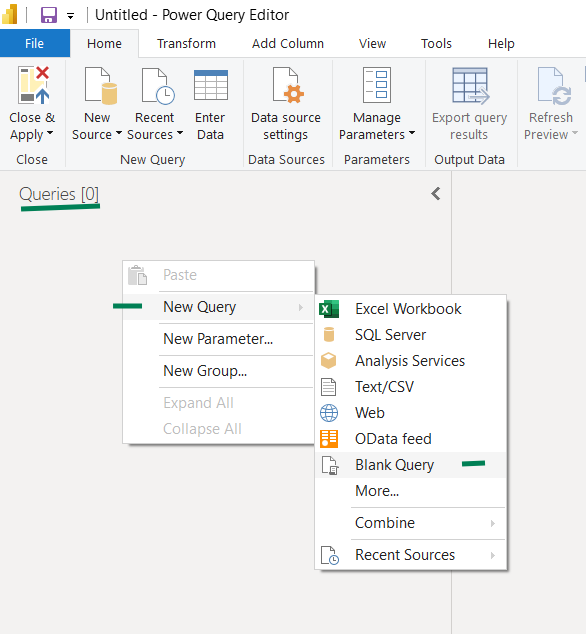
To create function in Power Query do following steps:
- Right click on queries pane
- Select New Query – Blank Query
- Open Advanced Editor and paste the code
Step 3: Connecting Power BI to the ZIP File on SharePoint
In Power BI, I added SharePoint as a data source and navigated to the folder where Power Automate uploads files.
To ensure Power BI always uses the newest report, I applied:
-
A filter on Date Created → Latest
After that, I modified the query:
-
Passed the binary ZIP file into the unzip function
-
Converted the resulting list into a table
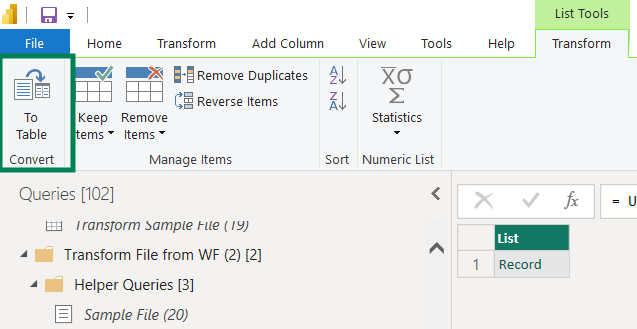
3. Expanded all columns to get the full Excel report content
And just like that – I had the full report loaded and ready inside Power BI.
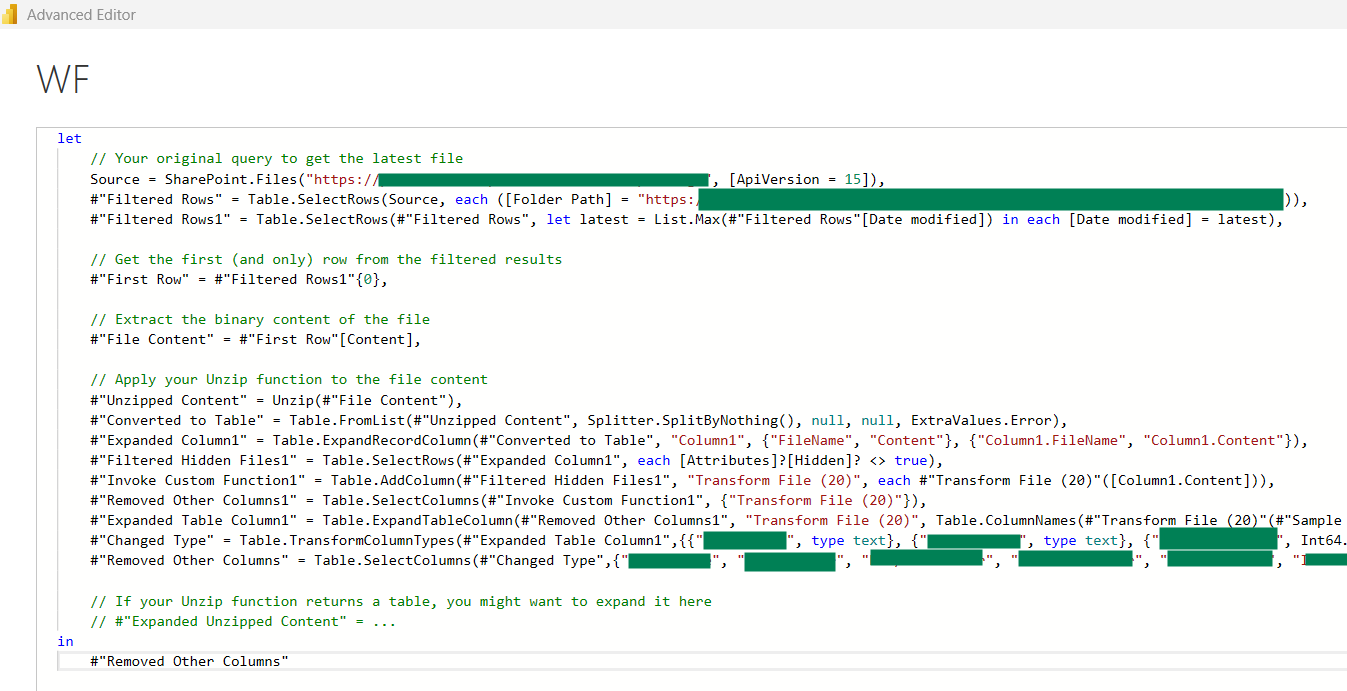
Here is the query how to include Unzip function in the first line under Apply your Unzip function to the file content step
Step 4: End-to-End Automation
Now the entire pipeline runs automatically:
-
Email arrives with ZIP attachment
-
Power Automate uploads it to SharePoint
-
Power BI scheduled refresh picks the latest file
-
ZIP is extracted using the custom unzip function
-
The newest report loads – without a single click
Once set up, this process runs every day without any human involvement.
Final Result
This solution:
-
Eliminates all manual copy–paste steps
-
Removes the need for daily unzipping
-
Makes the process resilient even if I’m not available
-
Ensures the report is always updated
-
Saves time and reduces errors
If your organization relies on daily emailed reports, especially ZIP files, this approach can save hours per week and remove operational bottlenecks.