

This Simple Power BI Trick Can Make Your Refresh Up to 7x Faster
Bogdan Pavlovic
5 min read
Introduction
If your Power BI report takes forever to refresh, or worse, randomly fails without a clear reason, you’re not alone.
I’ve seen this happen many times. You hit refresh, grab a coffee, come back… and it’s still loading. Naturally, most people assume the issue is with their data model, complex DAX, or too many visuals.
But in many cases, the real problem is something much simpler and completely overlooked.
If you’re using SharePoint as a data source, there’s a good chance your refresh time is suffering because of how your connection is set up. And the fix? It takes less than 3 minutes.
The Hidden Problem Behind Slow Refresh
Let’s say you connect to SharePoint using:
Get Data → SharePoint Folder
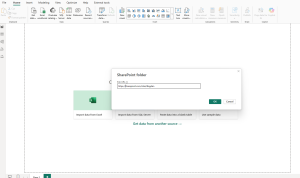
Behind the scenes, Power BI uses the SharePoint.Files connector. And while that sounds harmless, here’s what actually happens:
- Power BI connects to your SharePoint site
- It scans every file and folder across the entire site
- Only then does it filter down to the files you actually need
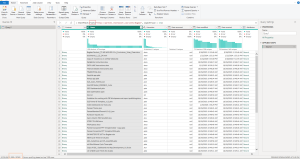
So even if your report depends on just 2 or 3 files, Power BI might be scanning thousands or even tens of thousands of files first.
As your SharePoint grows, this becomes a serious bottleneck.
I’ve personally seen refresh times jump from seconds to 20+ minutes, and in some extreme cases, even hours.
Why This Confuses Most People
Here’s the tricky part.
When refresh is slow, most developers instinctively try to:
- Optimize the data model
- Reduce columns
- Remove Sort By steps
- Simplify DAX
- Remove visuals
And while those are good practices, they won’t fix this issue.
Because the problem isn’t inside your model.
👉 The problem is how Power BI is retrieving the data in the first place.
The Simple Fix: Use SharePoint.Contents Instead
Instead of scanning the entire SharePoint site, you can tell Power BI to go directly to the folder you actually need.
That’s exactly what SharePoint.Contents does. You just need to replace word Files with Contents
Same files. Same transformations. Same end result.
But without the unnecessary scanning.
Real impact:
- Before: ~18 minutes refresh
- After: ~3 minutes refresh
That’s up to 7x faster, just by changing one line of M code.
Why This Works (Simple Analogy)
Think of it like this:
- SharePoint.Files = “Search every room in the building to find one folder”
- SharePoint.Contents = “Go directly to the exact room you need”
One is brute force.
The other is efficient navigation.
How to Set It Up (From Scratch)
If you’re creating a new query, here’s the easiest way to do it.
Step 1: Connect to SharePoint
Go to:
Get Data → SharePoint Folder
Enter your site URL and connect.
Step 2: Open Power Query
Click Transform Data to open Power Query Editor.
Step 3: Modify the Source
Find the Source step and open Advanced Editor.
You’ll see something like:
Replace it with:
Click Done.
What Changes After This
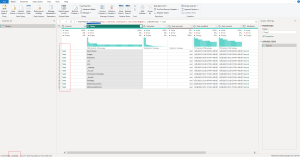
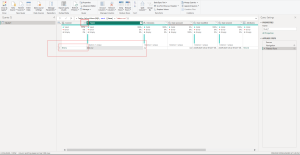
Instead of a flat list of all files, you’ll now see the actual folder structure from SharePoint.
From here, you need to:
- Click through folders step by step
- Navigate to the exact file or folder you need
- Then continue your transformations as usual
Yes, it takes a few extra clicks upfront.
But it saves you minutes on every single refresh.
Already Have a Query? Fix It in 2 Minutes
No need to rebuild anything.
Here’s the fastest approach:
- Duplicate your existing query (as backup)
- Open the duplicate
- Go to Source → Advanced Editor
- Replace
SharePoint.FileswithSharePoint.Contents - Click Done
- Drill down to your target folder
- Copy the final M code
- Paste it back into your original query (after Source step)
Done.
Same logic. Same transformations. Just faster.
Quick Sanity Check (Don’t Skip This)
After making the change, do one refresh and observe what happens.
If you still see a massive list of files, it means:
👉 You didn’t drill down far enough.
You want Power BI to hit only the folder you actually need, not the entire site.
When This Won’t Make a Huge Difference
This trick is powerful, but it’s not magic.
You might not see big improvements if:
- Your SharePoint library is very small
- You’re already filtering very early
- Your bottleneck is heavy transformations, not the source
But in most real-world scenarios, especially with growing SharePoint environments, the difference is very noticeable.
Final Thoughts
This is one of those rare optimizations that checks every box:
- Easy to implement
- Takes just a few minutes
- Delivers immediate results
- Keeps saving time on every refresh
If you’re working with SharePoint in Power BI, this is absolutely worth testing on your slowest report.
Chances are, you’ll see the difference right away.
Why I Wrote This
I’ve run into this issue more times than I can count, and every time the fix felt almost too simple for the impact it delivers.
So this article is partly a reminder for myself… and partly a shortcut for you.
If it saves you even a few minutes per refresh, it adds up fast.
And if it saves you from debugging DAX for no reason? Even better.